Fast-moving game content on a low-refresh, slow-response panel
If motion in a fast-paced game looks smeared and your aim still feels a beat behind the action, the problem is usually two things at once: a refresh rate too low to draw enough frames per second, and a panel that's too slow to switch pixels between them. Refresh rate and response time fix different halves of the same complaint, and treating them as one spec is where most buying decisions go wrong.
Refresh rate, measured in Hz, is how many times per second the panel redraws the image; response time is how long an individual pixel takes to shift from one shade to the next. A 60Hz panel can only ever show 60 distinct frames a second no matter how fast its pixels are, so fast panels paired with low refresh rates still look smooth-but-soft. A high refresh rate paired with a slow panel, on the other hand, can produce visible trailing behind moving objects even though the frame count is high. Getting rid of both symptoms means raising the refresh rate and picking a panel technology built to keep pace with it — OLED panels are self-emissive and switch state almost instantly, which is why they're treated as the fast-motion reference point, while LCD variants close the gap with faster pixel overdrive circuitry.
None of that matters if the graphics card behind the monitor can't produce the frame rate the panel is rated for. A 240Hz monitor displaying a game that's actually rendering at 90 frames per second behaves like a 90Hz monitor with a bigger price tag. Before paying for refresh rate, check what frame rate the GPU sustains in the specific games played, at the resolution and settings actually used — not a marketing number for a different title. As one guide to shopping for gaming displays puts it, matching the display to what the hardware can drive is part of evaluating the display itself, not a separate purchase decision — Lenovo's console monitor buying guide frames refresh rate and the source hardware's output together rather than as independent specs. A practical floor: if the GPU can't hold at least the monitor's refresh rate in most of the games played, the extra Hz above that ceiling is paid for and unused.
GPU frame output drifts away from the monitor's fixed refresh rate
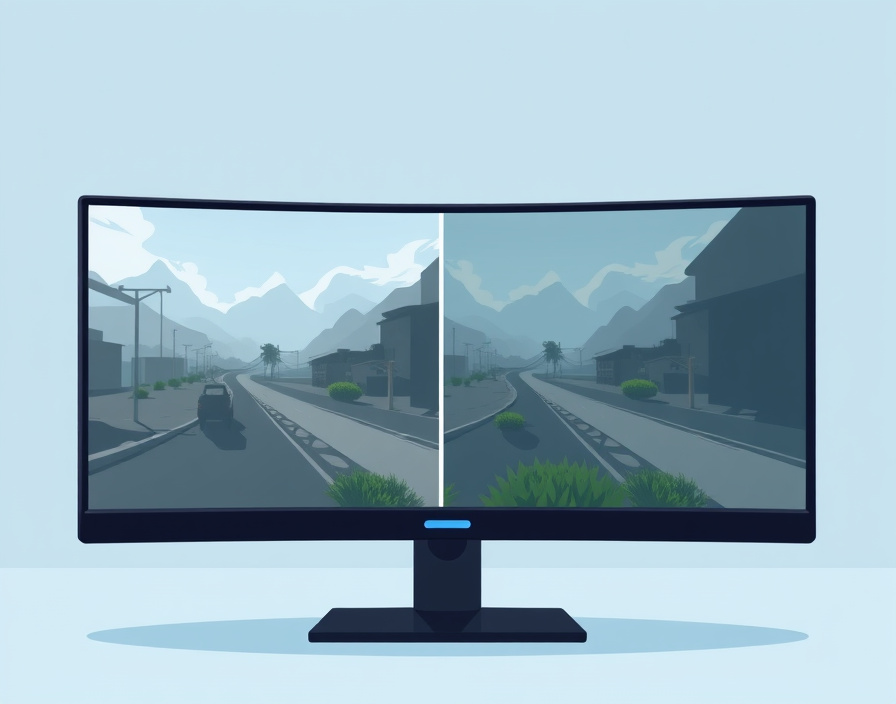
Screen tearing — a horizontal split where the top and bottom of the image are drawn from two different frames — happens when the GPU finishes a frame at a moment that doesn't line up with the monitor's fixed redraw cycle. A 60Hz panel redraws exactly every 16.7 milliseconds regardless of what the GPU is doing, and if a new frame lands mid-refresh, part of the old frame and part of the new one appear on screen together.
Adaptive sync fixes this by letting the monitor's refresh rate follow the GPU's output instead of running on a fixed clock. Nvidia's G-Sync and AMD's FreeSync are the two implementations, and most current monitors support one or both depending on the GPU installed. The fix is a checkbox rather than a purchase decision on its own: look for "G-Sync Compatible," "FreeSync," or "FreeSync Premium" on the monitor's spec sheet, confirm it matches the GPU brand in the system, and turn it on in the GPU's control panel as well as the monitor's on-screen menu — some panels ship with the feature off by default. Enabling it doesn't add frames; it removes the tearing artefact from whatever frame rate is already being produced, which is why it matters most on systems where frame rate fluctuates rather than sitting at a fixed number.
Choosing between 27in and 32in at a fixed resolution
The 27-versus-32-inch question is really a resolution question wearing a size label, because the two only make sense evaluated together. The same pixel count spread across a larger panel lowers pixel density — pixels per inch — which softens text and fine detail at normal desk viewing distances, even though the panel is physically bigger.
A 1440p image on a 27-inch panel and the same 1440p image on a 32-inch panel are not the same experience: the larger screen shows visibly larger, softer pixels because the same roughly 3.7 million pixels are stretched over more area. That's why the sizing convention that's settled out in practice pairs 27-inch panels with 1440p and steps up to 4K once the panel grows to 32 inches — the extra resolution keeps pixel density roughly where it was. Buying a 32-inch panel at 1440p to save money keeps the density problem; buying a 27-inch panel at 4K is sharp but rarely necessary at typical desk distances.
Whichever pairing gets chosen, the cable and port carrying the signal have to support it. HDMI and DisplayPort versions cap out at different maximum resolution-and-refresh-rate combinations, and a monitor rated for 4K at 144Hz will silently fall back to a lower refresh rate if it's connected with a port or cable that can't carry the full bandwidth. Before ordering, check the monitor's listed port versions against the GPU's output ports and confirm the target resolution-refresh pairing is one that combination actually supports — this is stated on spec sheets but easy to skip past, since sellers rarely spell out the combined ceiling rather than listing resolution and refresh rate as separate bullet points.
| Panel size | Matched resolution | Why |
|---|---|---|
| 27in | 1440p | Keeps pixel density comparable to a 24in 1080p panel at normal desk distance |
| 32in | 4K | Extra pixels offset the larger physical size, holding density steady |
| 32in | 1440p | Usable, but pixels are visibly larger/softer than the 27in pairing |
| 27in | 4K | Sharp beyond what's needed at typical desk distance; taxes the GPU for little visible gain |
Deciding between 120Hz and 4K on a limited budget
At a fixed budget, a monitor rarely offers both a high refresh rate and 4K resolution without a GPU capable of driving both at once, so the decision comes down to which one the games actually played benefit from more. Competitive, fast-paced titles — shooters, fighting games, anything where tracking a moving target or reacting a frame earlier matters — reward refresh rate more than resolution, because the extra frames shorten the gap between an action on screen and the next chance to see and react to it. Slower, visually driven single-player games reward resolution, colour accuracy and HDR contrast more, because there's time to look at the image rather than react to it.
That gives a working rule: identify which genre gets played most, then buy the spec that genre rewards, and treat the other spec as secondary rather than trying to max out both on one budget. A shooter-focused reader is better served by a 1080p or 1440p panel at a high refresh rate than by a 4K panel at 60Hz; a reader who mostly plays narrative or open-world titles gets more from 4K and HDR than from refresh rates the GPU can't fill with detail-heavy frames anyway.
The fallback for readers who can't sustain the higher refresh rate on their current GPU is straightforward: buy for the resolution and panel type first, since resolution doesn't depend on frame rate to look correct, and treat a refresh-rate upgrade as the next purchase once the GPU can support it. Deals for high-refresh 1080p and 1440p panels illustrate the spread in this bracket: one recent listing covered a curved 240Hz 1080p monitor discounted for high-frame-rate shooter play via PCGuide, while a separate listing covered a 200Hz ultrawide QHD panel aimed at the same competitive-play audience but at higher resolution also via PCGuide — both sit in the refresh-first tier rather than the resolution-first one, which is the genre they're built for.
Whether 240Hz itself is worth chasing past 120–144Hz depends on the same GPU-and-genre logic: the jump from 60Hz to 120–144Hz is the one most reviewers describe as clearly visible in fast content, while the difference from 144Hz to 240Hz is smaller and matters mainly in twitch-reaction competitive play where the GPU can reliably hit those frame rates — for slower genres, or for a GPU that tops out well under 240 frames per second, that tier is spending money on a number the system won't reach.
Gaming monitor
A gaming monitor is a display chosen specifically for how it handles motion and input at the resolutions and frame rates games actually produce, rather than for the general office or media specs a standard monitor is judged on. The specs that matter — refresh rate, response time, adaptive sync support, resolution paired correctly with panel size, and port bandwidth — only add up to a good purchase when they're matched against the GPU actually driving the panel and the genre actually being played, not shopped as a stack of separately impressive numbers. A guide aimed at narrowing this exact decision frames it the same way: match the panel to the games and hardware in hand rather than to the highest number on the spec sheet — one roundup on finding the right gaming monitor makes the same point about buying for the setup rather than the spec sheet in isolation.
Start from what's already on the desk: note the GPU model and the frame rates it holds in the games played most, measure the actual desk viewing distance, and check which port versions are available on both the GPU and the monitors under consideration. Those three numbers narrow the field far faster than any spec-sheet comparison, and they're the ones worth writing down before opening a single product listing.